




 1,297
1,297 Like
Like Share
Share
 Report
Managing a full-capacity event can get tricky when cancellations leave seats open and new registrants have nowhere to go. Dynamics 365 Customer Insights – Journeys simplifies this with its native event waitlist capability, allowing marketers to manage capacity, queue new registrants, and automatically fill available seats. This blog walks through how to set up and manage a waitlist for a single-session webinar.
Why It Matters
Marketing events are judged on turnout, and turnout is judged against capacity. A webinar platform license, a guest speaker’s time, or a virtual room’s bandwidth all have a ceiling — and every empty seat at that ceiling is wasted spend. Before this feature, closing a full registration list meant either turning latecomers away entirely or manually chasing down replacements every time someone cancelled, usually in a spreadsheet parked outside the CRM. Which is a real pain for the Marketing Team.
Waitlisting solves this in two ways. First, it keeps demand visible instead of discarding it — everyone who wanted in after capacity was reached becomes a tracked, Waitlist record created rather than a bounce. Second, it automates the backfill, so a cancellation on Tuesday can be replaced with a confirmed registrant by Wednesday without an event coordinator manually working the list.
What the Feature Does
At its core, the feature lets you attach a maximum capacity to an event (and, separately, to individual sessions within an event). Once the capacity reached, further registrations are waitlisted. Which can be managed and maintained in any of 2 ways:
- Automatic backfill: when a spot opens up, the system finds the longest-waiting waitlisted contact and registers them immediately.
- Manual backfill: when a spot opens up, the contact is flagged as eligible, and you decide when and how to invite them to claim the seat.
How to Set It Up: A Single-Session Webinar
For a webinar, there’s no session-level agenda to worry about — capacity and waitlisting are configured once, directly on the event.
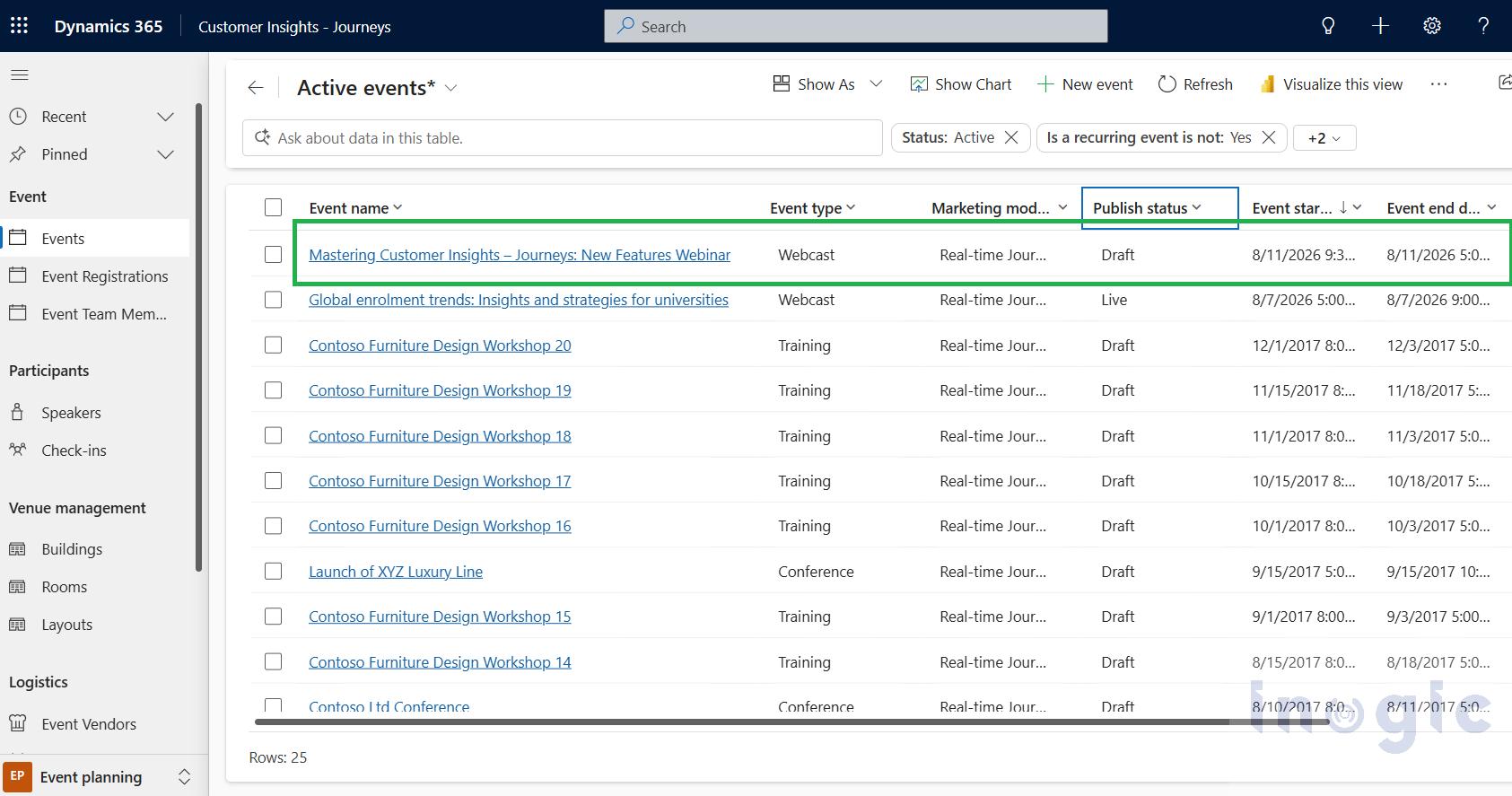
- In the Customer Insights Journeys app > under Event Planning > Open the Event work area and go to Events > Open your webinar event (As I am setting it up, its publish status = Draft initially, and when done with set up, we can make it Live).
*This post is locked for comments